How to Run a Local AI at Home with Unsloth Desktop
Set up a private ChatGPT and Claude alternative on your own GPU with Unsloth Desktop, pick a model that fits your VRAM, and share it at home.
By Jerry James ·
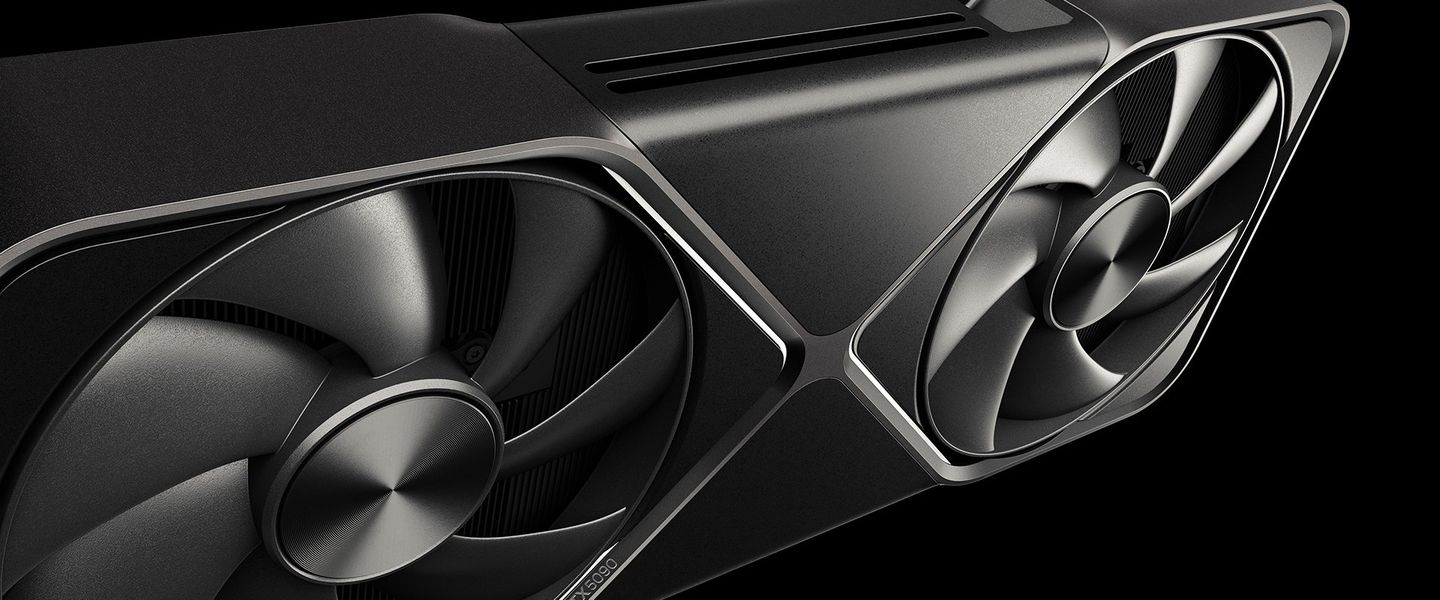
With the launch of open-weight models like Qwen, cloud-based LLM providers seem like they're more of infrastructure or appliance businesses when it comes to most routine tasks that an AI model can handle.
OpenAI and Anthropic have displayed a pattern of dropping model quality in the 'latest' version and controlling exactly what you're allowed to run on their models. Add to this ballooning costs and privacy concerns, and we get a pretty good case for moving away from this 'convenient' cloud experience.
That's basically where I was too. I wanted to offload certain token-heavy research, data collection, or coding tasks to an AI model without staring at usage limits all day. So, as any reasonable human being would do, I decided to set up my own local AI: a Claude and ChatGPT replacement that runs at home on my own hardware.
Since this was my first attempt, my primary focus was keeping it simple and hosting it on Windows. If you're a beginner, you can follow along to get one going on your home network too.
Once you have the hardware sorted, it takes about 10-15 minutes (excluding download times).
The short version
Install Unsloth Desktop, download a quantized AI model that fits your GPU's VRAM, set your context size, and turn on LAN access so everyone at home can use it.
What Do You Need to Run a Local AI at Home?
Not much (other than the hardware). Here's a short list:
- A Windows PC with a graphics card (GPU). The more video memory (VRAM) it has, the bigger the model it can run. I'm using an RTX 5090 with 32GB VRAM for this setup.
- Unsloth Desktop. A free app that 'serves' the AI model to you through a chat interface. Get it from Unsloth.
- An AI model sized to fit your GPU. We'll pick one in the next section.
That's it. No terminal commands, Python environments, or subscriptions required.
Which AI Model Can Your GPU Run?
It depends on how much VRAM your graphics card has. As a rough guide, 8-12GB of VRAM handles smaller 9B-12B models, while 32GB comfortably runs 27B-35B models with plenty of room for long conversations.
On consumer-grade hardware, we'll need smaller models. The full-size Qwen model sits at around 56GB and won't really fit on a consumer graphics card unless you're running a Mac with unified memory. That's where quantization comes in.
What Is Quantization?
Quantization shrinks a model by compressing weights and moving to a lower precision. You basically trade some accuracy for a model that actually fits on your GPU and runs faster.

The first 32 weights of one Qwen3.8-27B layer, before and after 4-bit rounding. After rounding, 32 different values are down to 15.
If you're wondering whether this tradeoff is worth it, well, it depends. You'll find that certain types of workloads don't really care and give similar outputs, while others may be nearly unusable.
Which Model Should You Run for Your VRAM?
For this guide, we'll be going with Qwen3.8-27B with 4-bit quantization on my system with an RTX 5090. Going up a tier is an option thanks to its 32GB of VRAM, but I wanted to allow for a larger context window (how much of the conversation the model can keep in mind at once) rather than cramming in the largest model that fits.

Qwen3.8-27B at each precision with a 128K context, from our VRAM calculator. At 4-bit, the model and the context fit a 32 GB card with room to spare.
If you want to run a model of this caliber with excellent performance, a hilariously overpriced RTX 5090 (remember when $1,999 felt too high?) is unfortunately still not a terrible 'deal' these days. The other option is way more expensive enterprise-grade GPUs.
If you're on a GPU with less VRAM, you can still get something very usable going right away. The table below gives you a rough idea of where you can start.
Size | VRAM | Models to try | Version (quant) | Context size | Pro cards we carry |
|---|---|---|---|---|---|
Small | 8-12 GB | UD-Q4_K_S or Q4_K_M | 8K-16K | None at this size | |
Medium | 16 GB | Q4_K_M or Q5_K_M | 16K-32K | ||
Large | 24 GB | UD-Q4_K_M or Q4_K_S | 16K-32K | ||
Extra Large | 32 GB+ | UD-Q4_K_XL or Q6_K | 64K-128K+ |
Small
- VRAM
8-12 GB
- Models to try
- Version (quant)
UD-Q4_K_S or Q4_K_M
- Context size
8K-16K
- Pro cards we carry
None at this size
Medium
- VRAM
16 GB
- Models to try
- Version (quant)
Q4_K_M or Q5_K_M
- Context size
16K-32K
- Pro cards we carry
Large
- VRAM
24 GB
- Models to try
- Version (quant)
UD-Q4_K_M or Q4_K_S
- Context size
16K-32K
- Pro cards we carry
Extra Large
- VRAM
32 GB+
- Models to try
- Version (quant)
UD-Q4_K_XL or Q6_K
- Context size
64K-128K+
- Pro cards we carry
Feel free to experiment with several models until you find one that fits your needs. You can also use GPUPartner's VRAM Calculator to get an estimate.
Can You Run a Local AI on a Mac?
Yes. You'll find good alternatives in Apple's Mac lineup thanks to its unified memory. Macs are pretty good at running larger models, even if they don't offer the best performance. Just make sure you grab the MLX flavor that is custom-built for Apple Silicon.
The same trade applies to unified-memory PCs like the MSI PRO MAX EDGE AI+ 11M and NVIDIA's DGX Spark.
How Do You Set Up a Local AI with Unsloth Desktop?
It takes three steps: install Unsloth Desktop, download your model, and set the context size. I'll go over these steps in more detail below so you can follow along.
Step 1: Install Unsloth Desktop
First, we'll need a solution that 'serves' the AI model to you. My pursuit of simplicity narrowed my choices down to LM Studio or Unsloth Desktop. Both abstract away a ton of terminal commands and handle Python environments and dependencies behind a nice, simple UI, which makes them excellent picks for a first home setup.
I landed on Unsloth Desktop mostly because, well, I liked the name better. Also, it didn't try to push the very thing I was trying to escape when I opened its website: a subscription.
The community seems to like it overall too, so that's another point in its favor.
Once you've clicked through the installer and launched Unsloth, you'll see a window like this one.

Unsloth Desktop on first launch, before any model is loaded.
Step 2: Download a Quantized Model
On the top left of this main window, you can pick the model that you want to use from the drop down. We'll be using Qwen3.8-27B.

The model picker. Qwen3.8-27B is first on the Recommended list.
You should see a submenu like the one below when you click on a model. I'll be using Unsloth's UD-Q4_K_XL version. The M and S versions are smaller, but the XL version behaves much closer to the full-size model without filling up our VRAM, so it seemed like a good pick for my GPU.

Every quantization of Qwen3.8-27B with its download size. The gear next to the downloaded one holds the context setting.
Step 3: Set the Context Size
Once the download completes, you should see a gear icon to the right of the model as shown in the screenshot above. Here, you can set your context size manually or leave it on Auto if you aren't sure how much you need.
I'll be setting mine to 128K (unquantized) and might reassess after I've run the model through a few of my routine tasks for a few weeks. Again, you can use this VRAM calculator to help you with these numbers for your specific GPU.
At this point, our first local AI is up and running, and you can start chatting with it right inside Unsloth.
Remember, your mileage may vary depending on your setup.
How Do You Share a Local AI Across Your Home Network?
Short answer: Unsloth Desktop has LAN sharing built in. Set a Remote password, start LAN access, and share the address it gives you with anyone on your home network.
Once Unsloth Desktop is set up with a model, you might want to give family members or friends access too. For now, we'll only serve it over our local network, so my family can use it without needing physical access to this PC.
Head into Unsloth Desktop settings (gear icon on bottom left), and look for the 'Remote & LAN' tab.

Settings, Remote & LAN. LAN access is the second card. The Remote access card above it is for a later part.
Most of this section will be greyed out until you set a Remote password. Once you've set a password, you'll see a 'Start' button for LAN access. Click that and you should see an address that anyone on your home network can open in a browser to use a local AI model within a chat interface. They'll sign in as 'unsloth' with the Remote password you set.
Just keep in mind that the PC needs to stay on with Unsloth running for anyone to reach it.
Can You Access Your Local AI Across the Internet? Soon™
Not with this setup alone. Everything so far is limited to your local home network.
If you just need a chat interface like ChatGPT, Gemini, etc. to work within your home network, you're basically done at this point! You and anyone on your network can start talking to an AI model hosted on your machine right away.
In the next parts, we'll cover performance, tunneling, as well as setting up an agent that runs locally and uses only the web tools you allow it to use. This will let you automate more complex tasks like coding, research, and so much more without being tied to a subscription or usage limits and censorship.
As always, my focus remains simplicity that allows my family to use it without too much guidance or help.
PS. If you have any recommendations for agentic harnesses or even models to try, feel free to let me know and I'll give them a go!
Sources
Source | Details |
|---|---|
Free, open-source app for macOS, Windows and Linux; runs GGUF and MLX models | |
Remote & LAN settings, LAN access start and port behaviour | |
Official 16-bit weights (~56 GB) and parameter count | |
Quantized files and sizes, including UD-Q4_K_XL (~18 GB) | |
32 GB GDDR7 consumer GPU used for this build |
- Details
Free, open-source app for macOS, Windows and Linux; runs GGUF and MLX models
- Details
Remote & LAN settings, LAN access start and port behaviour
- Details
Official 16-bit weights (~56 GB) and parameter count
- Details
Quantized files and sizes, including UD-Q4_K_XL (~18 GB)
- Details
32 GB GDDR7 consumer GPU used for this build
- local LLM
- local AI
- self-hosted LLM
- Unsloth Desktop
- Unsloth Studio
- LM Studio
- Qwen3.8-27B
- GGUF
- UD-Q4_K_XL
- quantization
- VRAM
- context window
- RTX 5090
- LAN access
- Windows
- MLX
- Apple Silicon
- unified memory
- Gemma 4
- gpt-oss-20b
- Qwen3-Coder-30B
- Qwen3.6-35B
- RTX PRO 4500 Blackwell
- Mac Studio
- DGX Spark
- VRAM calculator
- ChatGPT alternative
- Claude alternative